AI Chat Agent CMS module for CustomGPT in HubSpot

Embed your single-agent chat interface in your HubSpot CMS website when using CustomGPT.
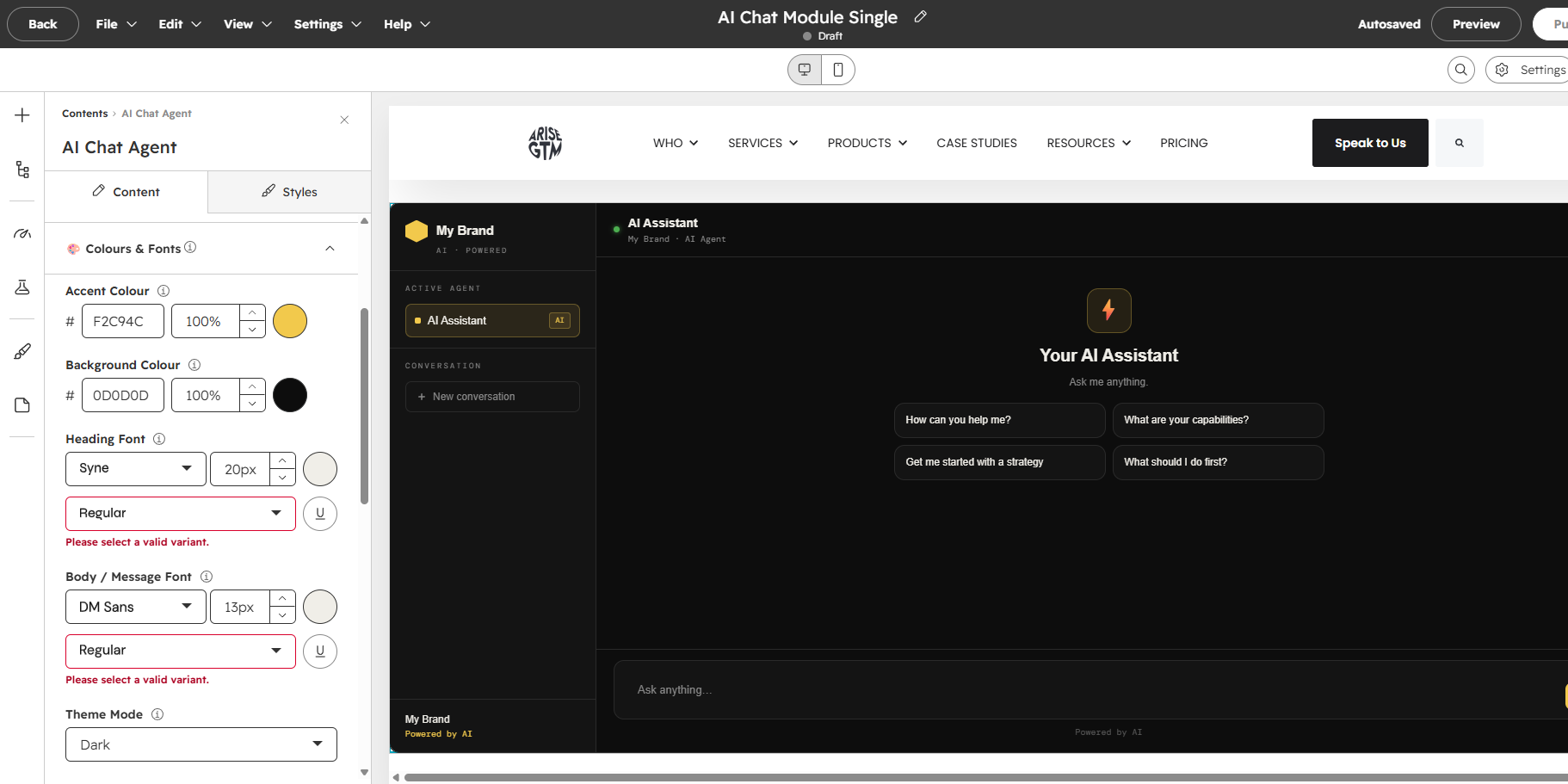
AI Assistant
My Brand · AI Agent
Your AI Assistant

Ask me anything.

Overview

The AI Chat Agent module embeds a full-featured AI chat interface into your HubSpot pages. It connects to your AI agent via a managed proxy and displays conversations in a branded chat panel with sidebar, conversation starters, and real-time streaming responses. This module works with CustomGPT.

Best for: Customer support pages, product pages with AI-assisted buying, knowledge bases, FAQ replacements, and any page where visitors benefit from conversational AI.

Note: This module requires a subscription to CustomGPT.io to embed your customGPT agent.
Transparent HubSpot CMS Module Pricing

Flexible functionality

Our flexible Hubspot CMS modules allow you to choose the right outcome for one fixed cost. Whether thats a standard version or a pro version, we make it easy to understand which is suited to the task at hand.

Standard Module

$129
  • Sprocket Rocket App Access

  • 1 HubSpot Portal

  • 1 user

  • Rapid Drag & Drop Builder

  • 10 Modules

  • 2 Templates

Professional Module

$299

  • Sprocket Rocket App Access

  • 1 HubSpot Portal

  • 1 user

  • Rapid Drag & Drop Builder

Setup & configuration guide

Getting started with your Ai Chat Module

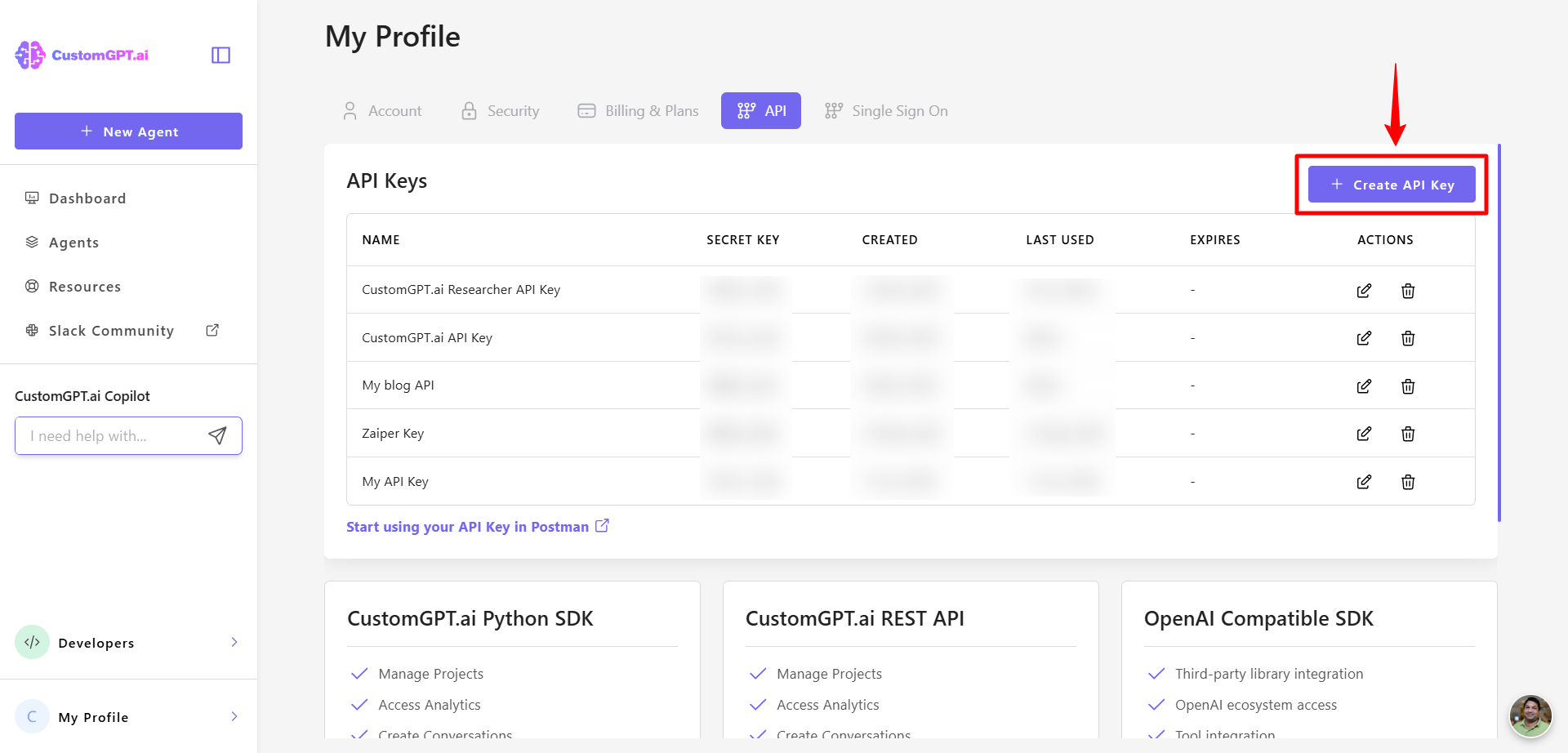
cdf60eb8b6e9faab4a3212721cf3f6279f48f7c76ab33b26c89fc8aa4d63ca96-create_API_Key_button

Connect your CustomGPT account (once)

During Arise onboarding, register your CustomGPT API key and your site domain on Arise's secure page, this happens outside HubSpot, so your key never appears on the page.
AI Chat Module HubSpot CMS CustomGPT

Then in HubSpot...

  1. Open your page in the editor.
  2. Search for "AI Chat Agent" and drag it on.
  3. Enter your non‑secret CustomGPT Project ID.
  4. Style it: branding, colours (or Inherit), starters, width. 
Edit Page - AI Chat Module Single - Agent Setup

Setting up your Agent

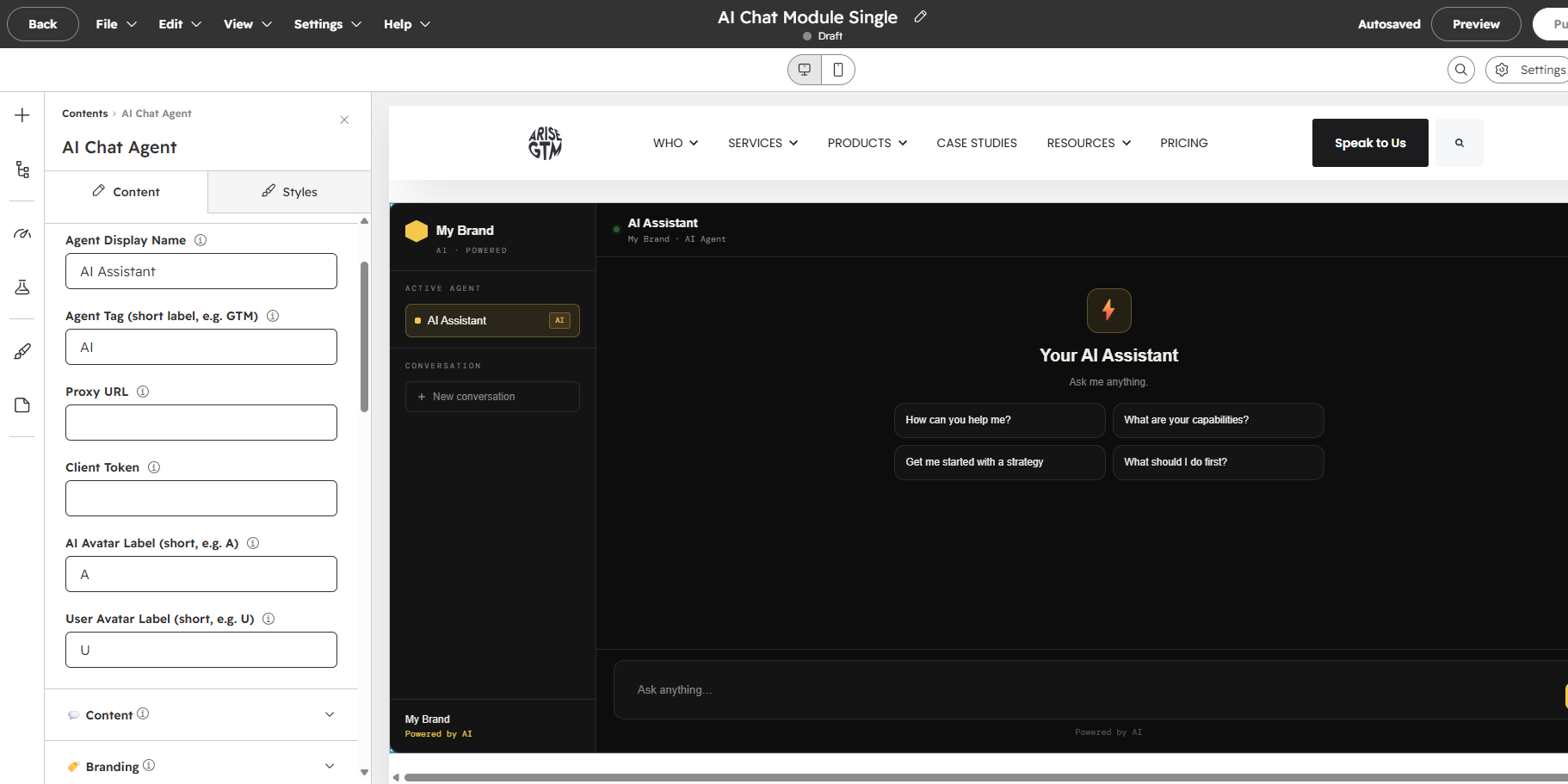
Open the module side panel and complete the fields to give your agent its online personality.
Edit Page - AI Chat Module Single - Content

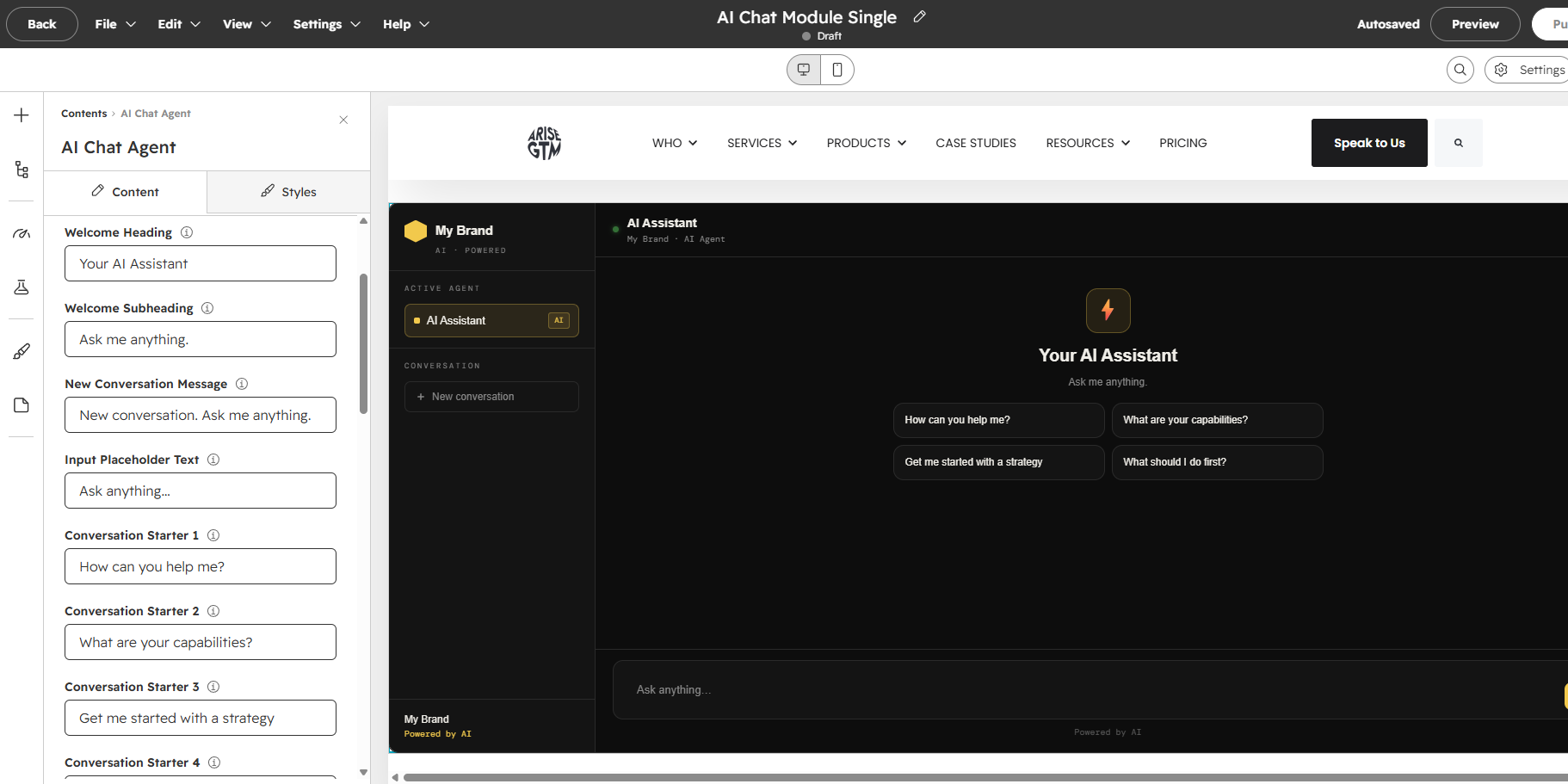
Now add your agent's content

Have you named your agent and made it easy for your users to understand what the agenyt offers?

Do you have your agent prompt ready so you can get it going?
Edit Page - AI Chat Module Single - Branding

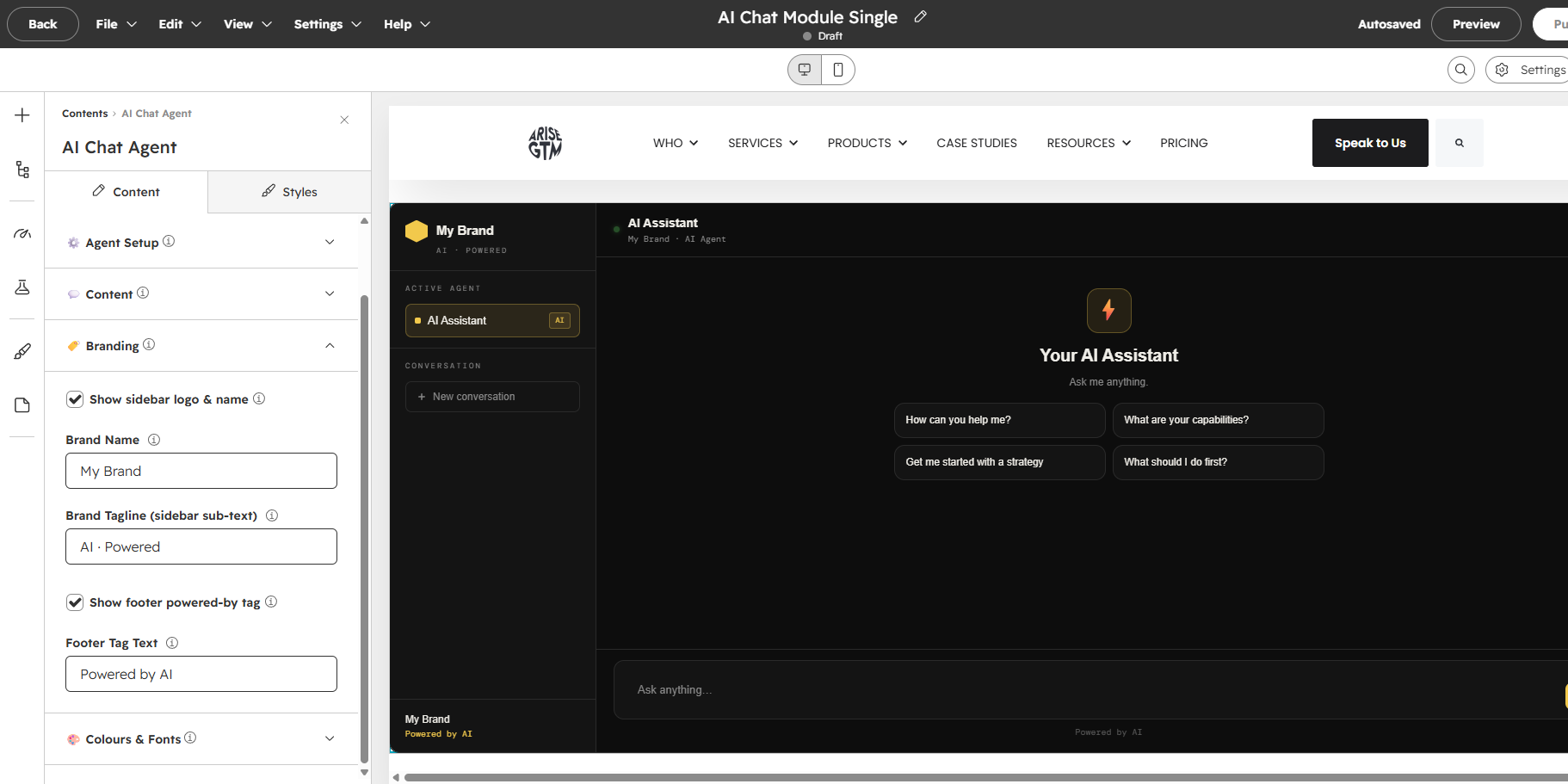
Adding your branding

Tell your users who you are and how they should refer to the agent.
Edit Page - AI Chat Module Single - Colours & Fonts

Customise your colours and fonts

Now choose your brand colours and fonts from the google library.

Conversation starters

These are the four clickable buttons on the welcome screen. Make them relevant to your use case and phrased as things a visitor would naturally ask.

Examples for a SaaS product: "What features does your platform include?", "How does pricing work?", "Can I see a demo?", "How do I get started?"

Examples for customer support: "I need help with my account", "How do I reset my password?", "What are your support hours?", "I have a billing question"

Tips

  • Connect once, not per page: your CustomGPT account is linked during Arise onboarding — nothing to configure per page beyond the agent's Project ID.
  • Inherit theme: turn on "Inherit colours from page theme" to match your site, or leave it off to use the module's own colours.
  • Size & centre: 640px default height; set Max Width to constrain and centre the widget in wide columns.
  • Mobile: the sidebar collapses under 600px, showing just the chat area.
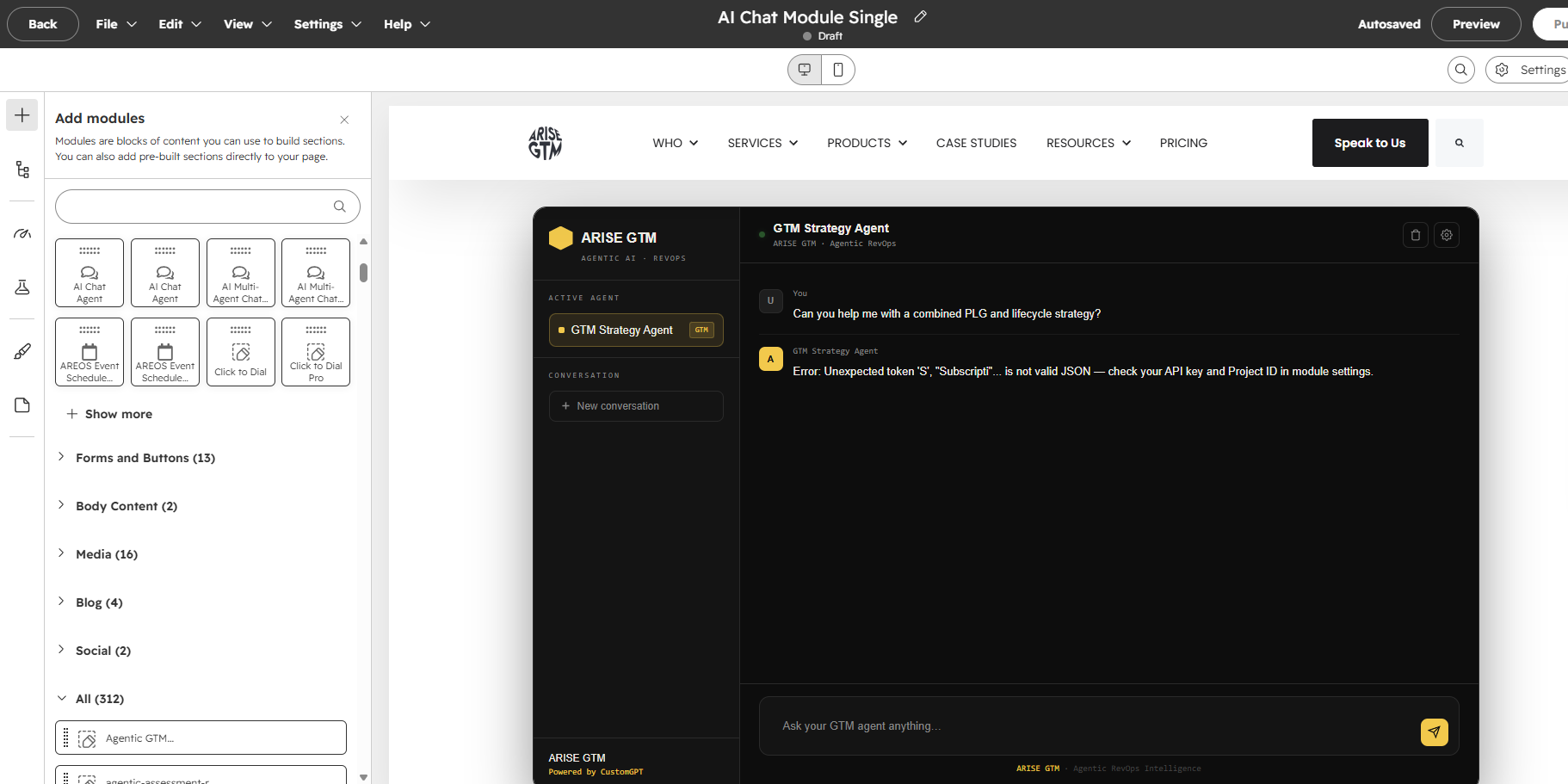
  • Troubleshooting: if the chat errors, check the agent's CustomGPT Project ID and that your domain is registered with Arise, a generic message shows after ~30s.

Need help with your HubSpot CMS?


If you're building, rebuilding or improving a HubSpot website, see how ARISE GTM approaches HubSpot CMS builds and migrations.