Skip to content
English
  • There are no suggestions because the search field is empty.

AI Chat Agent CMS Module

Setup & Configuration Guide

Overview

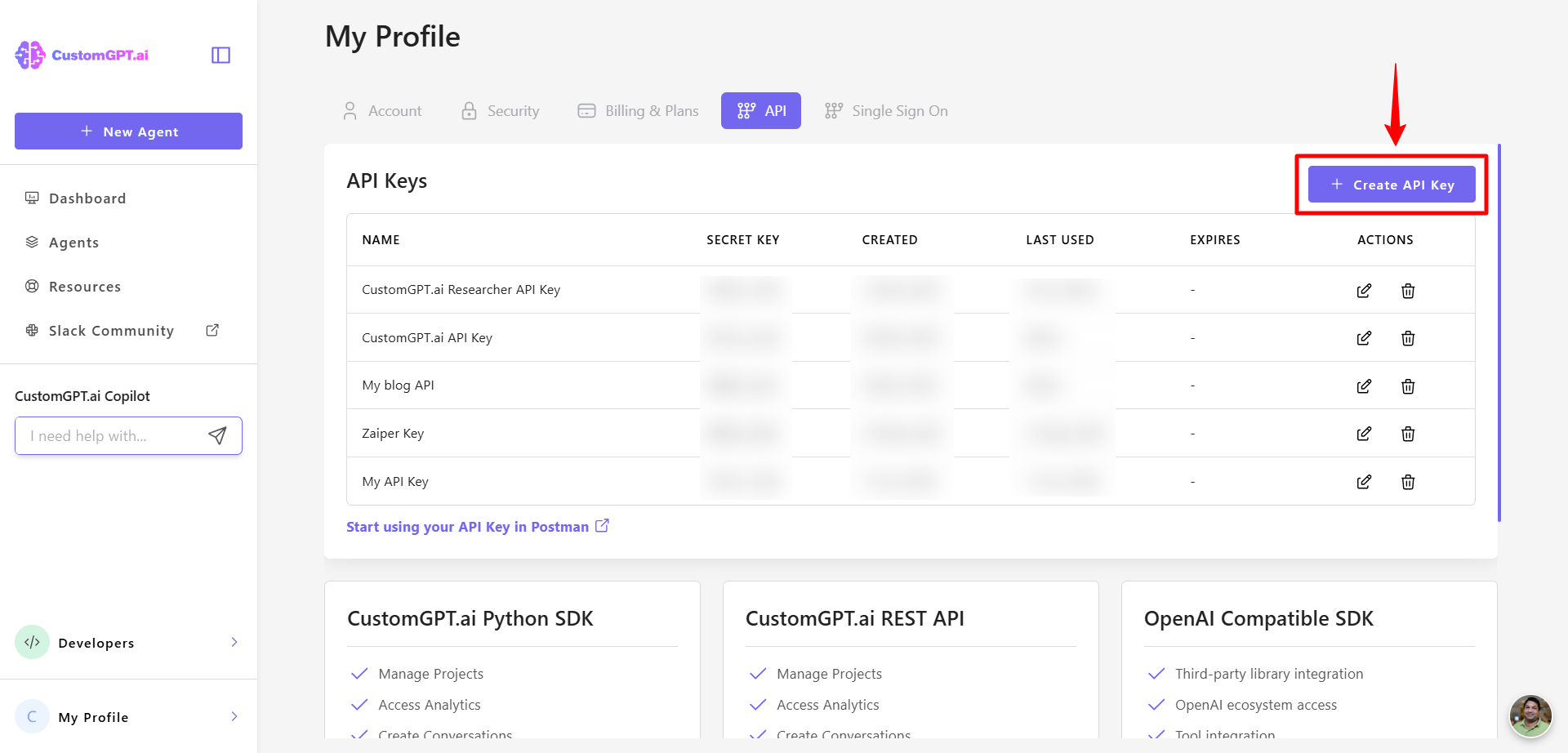
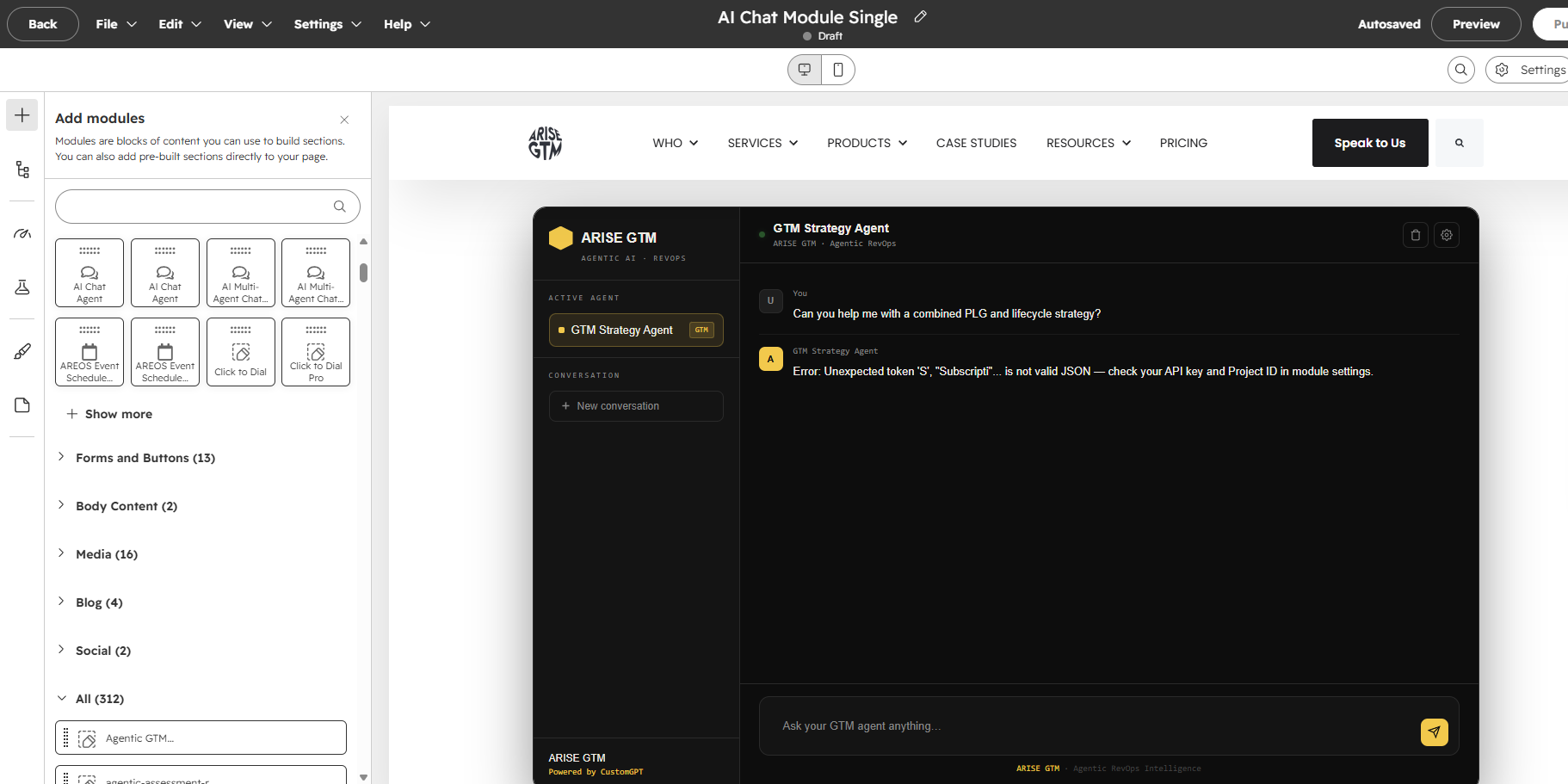
The AI Chat Agent module embeds a full-featured AI chat interface into your HubSpot pages. It connects to your AI agent via a managed proxy and displays conversations in a branded chat panel with sidebar, conversation starters, and real-time streaming responses. This module works with CustomGPT.

Best for: Customer support pages, product pages with AI-assisted buying, knowledge bases, FAQ replacements, and any page where visitors benefit from conversational AI.

Note: This module requires a proxy URL and client token provided after purchase. The proxy handles authentication and rate limiting for your AI agent.

Getting Started

  1. Open any page in the HubSpot editor.
  2. Search for AI Chat Agent in the module panel.
  3. Drag it onto your page.
  4. Enter your Proxy URL and Client Token in the Agent Setup fields.

Field Reference

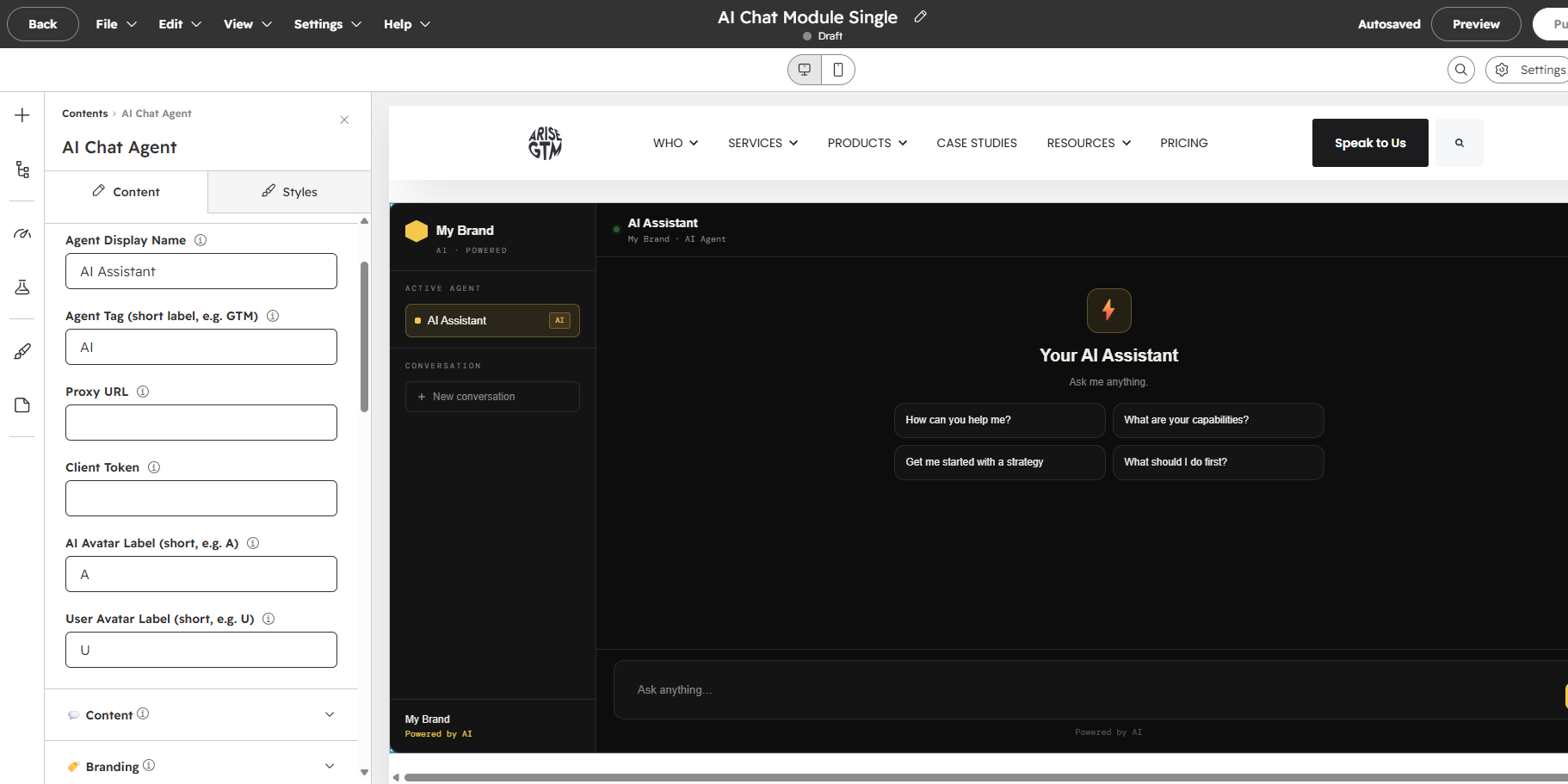
Agent Setup

Field What it does
Agent Display Name The name shown in the sidebar, topbar, and message headers. Default: "AI Assistant"
Agent Tag A short label (e.g. "GTM", "AI", "Support") shown as a badge.
Proxy URL Your managed proxy URL (e.g. https://your-proxy.workers.dev/chat). Required.
Client Token Your unique authentication token (e.g. cust_abc123).
AI Avatar Label The letter shown in the AI message avatar bubble. Default: "A"
User Avatar Label The letter shown in the user message avatar bubble. Default: "U"

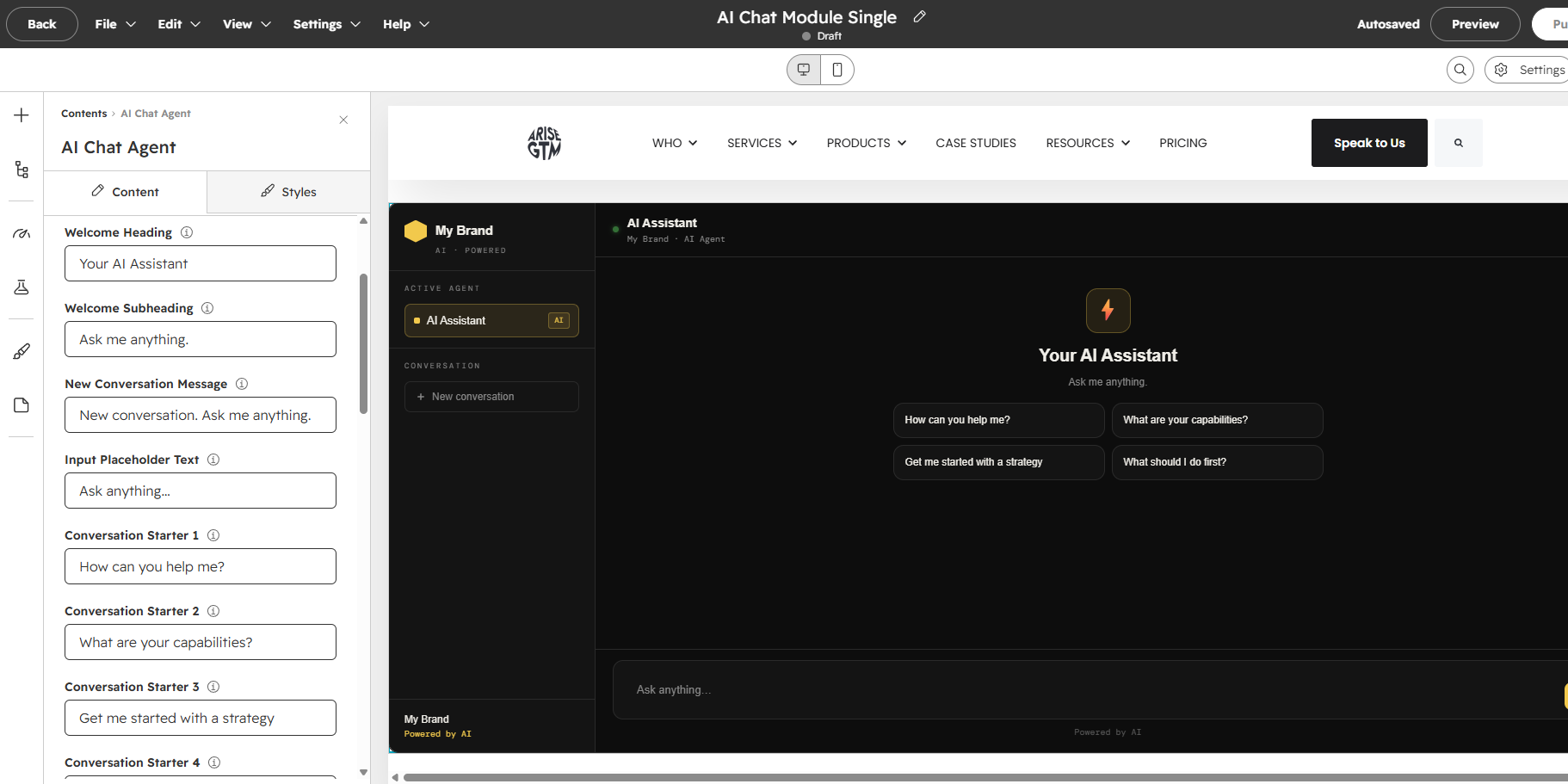
Content

Field What it does
Welcome Heading The large text in the welcome screen.
Welcome Subheading Smaller text below the heading.
New Conversation Message Text shown after clicking "New conversation".
Input Placeholder Placeholder text in the message input. Default: "Ask anything..."
Conversation Starters 1–4 Four clickable prompt buttons shown in the welcome screen.

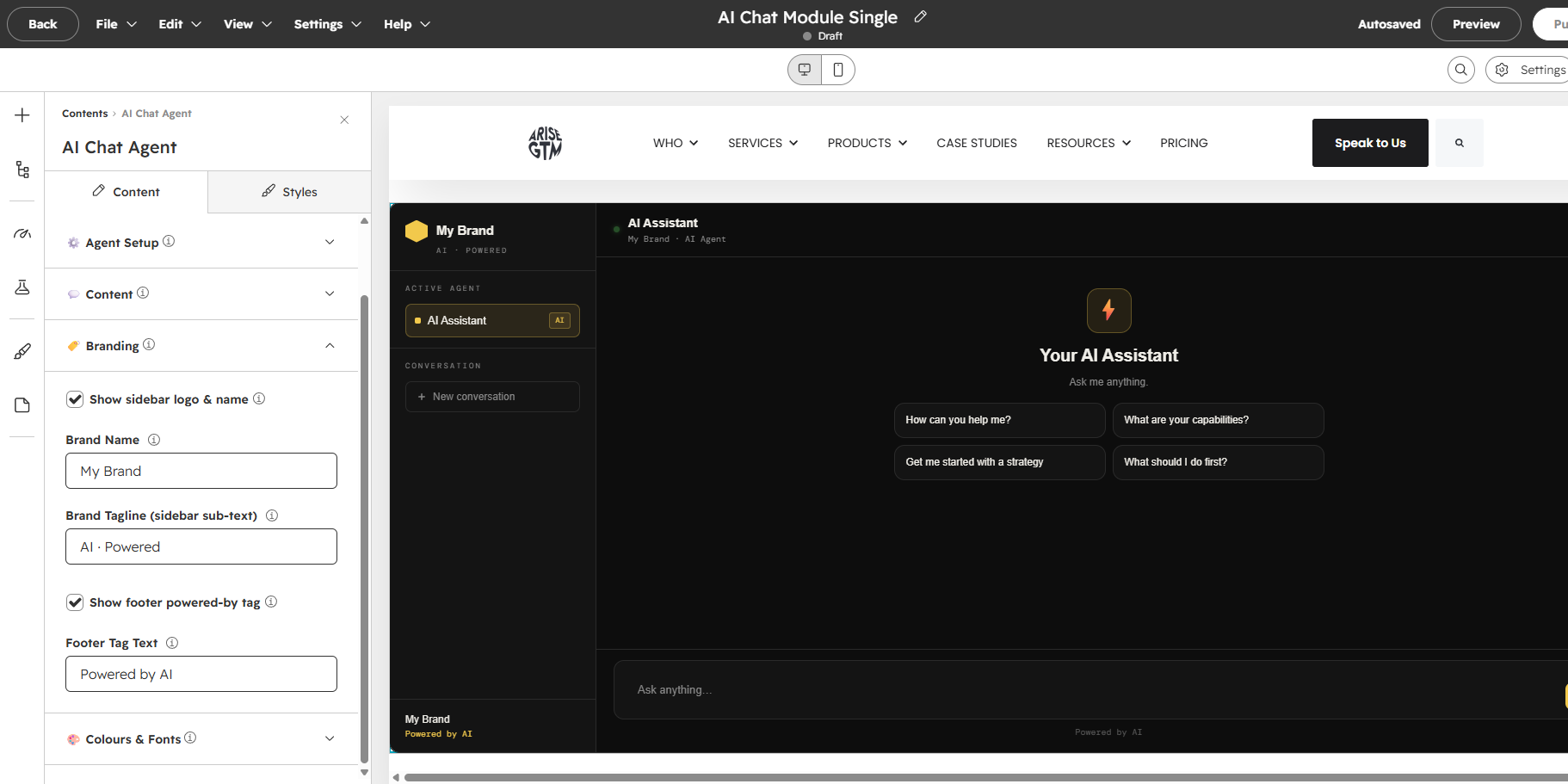
Branding

Field What it does
Show sidebar logo Toggle the sidebar brand area on/off.
Brand Name Your company or product name shown in the sidebar.
Brand Tagline Small text below the brand name (e.g. "AI Powered").
Show footer tag Toggle the "Powered by AI" footer text.

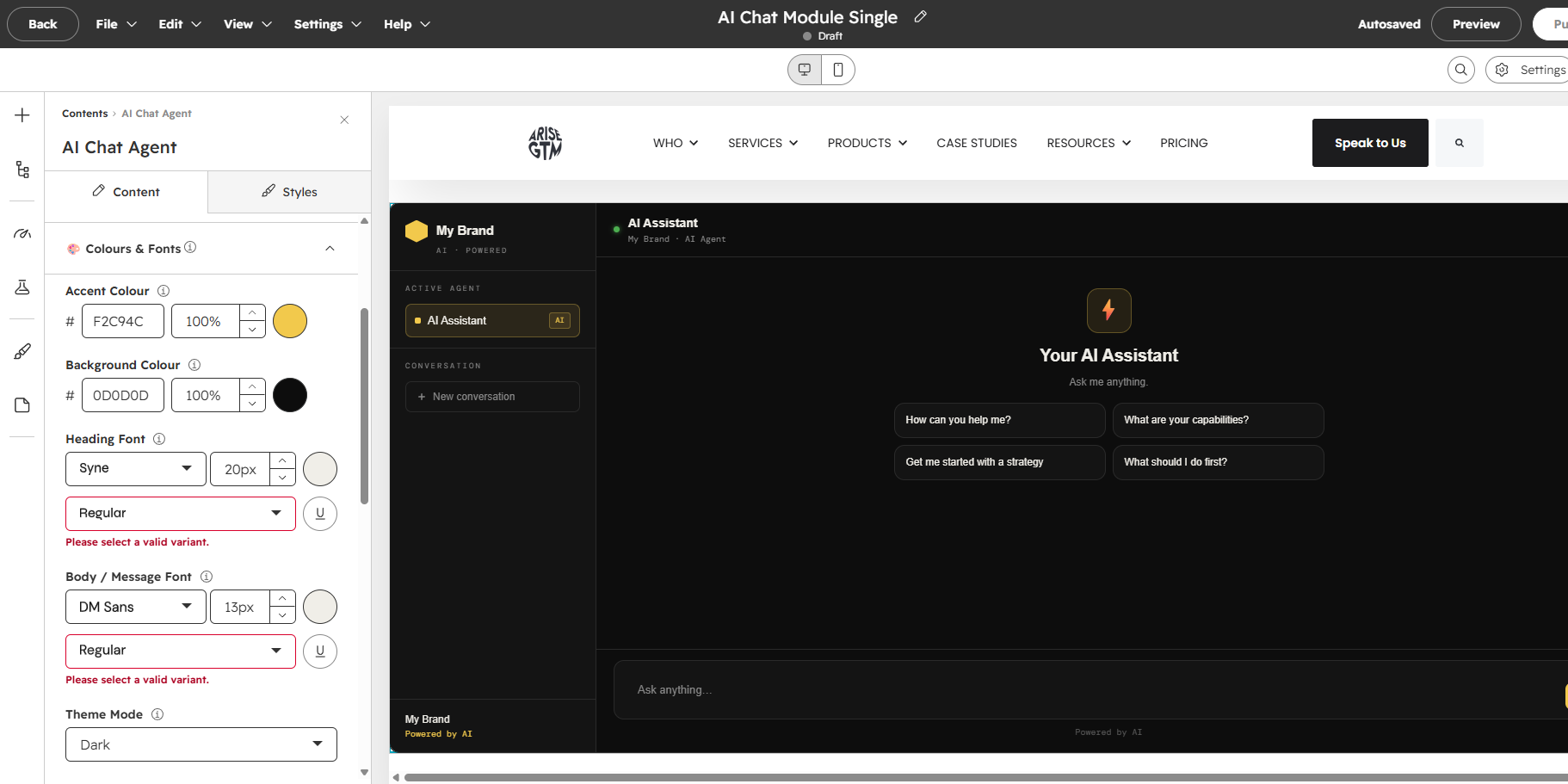
Colours & Fonts

Field What it does
Accent Colour Primary colour for buttons, avatars, highlights, and active states.
Background Colour Main chat area background.
Sidebar Background Sidebar panel background.
Text Colour Primary text colour for messages.
Theme Mode Dark, Light, or Inherit from page theme.
Corner Radius Sharp, Slight, Rounded, or Pill.
Module Height Height in pixels. Default: 640px.

Conversation Starters

These are the four clickable buttons on the welcome screen. Make them relevant to your use case and phrased as things a visitor would naturally ask.

Examples for a SaaS product: "What features does your platform include?", "How does pricing work?", "Can I see a demo?", "How do I get started?"

Examples for customer support: "I need help with my account", "How do I reset my password?", "What are your support hours?", "I have a billing question"

Tips

  • Proxy setup: The proxy URL and client token are provided during onboarding. Without them, the module shows an error.
  • Theme inheritance: Set Theme Mode to "Inherit" if your page already has CSS custom properties — the module will match your site's look.
  • Module height: 640px is a good default for desktop. On pages with less vertical space, try 500px.
  • Mobile: The sidebar hides on screens under 600px wide, showing only the chat area.