Skip to content
English
  • There are no suggestions because the search field is empty.

AI Multi-Agent Chat Console

Setup & Configuration Guide

Overview

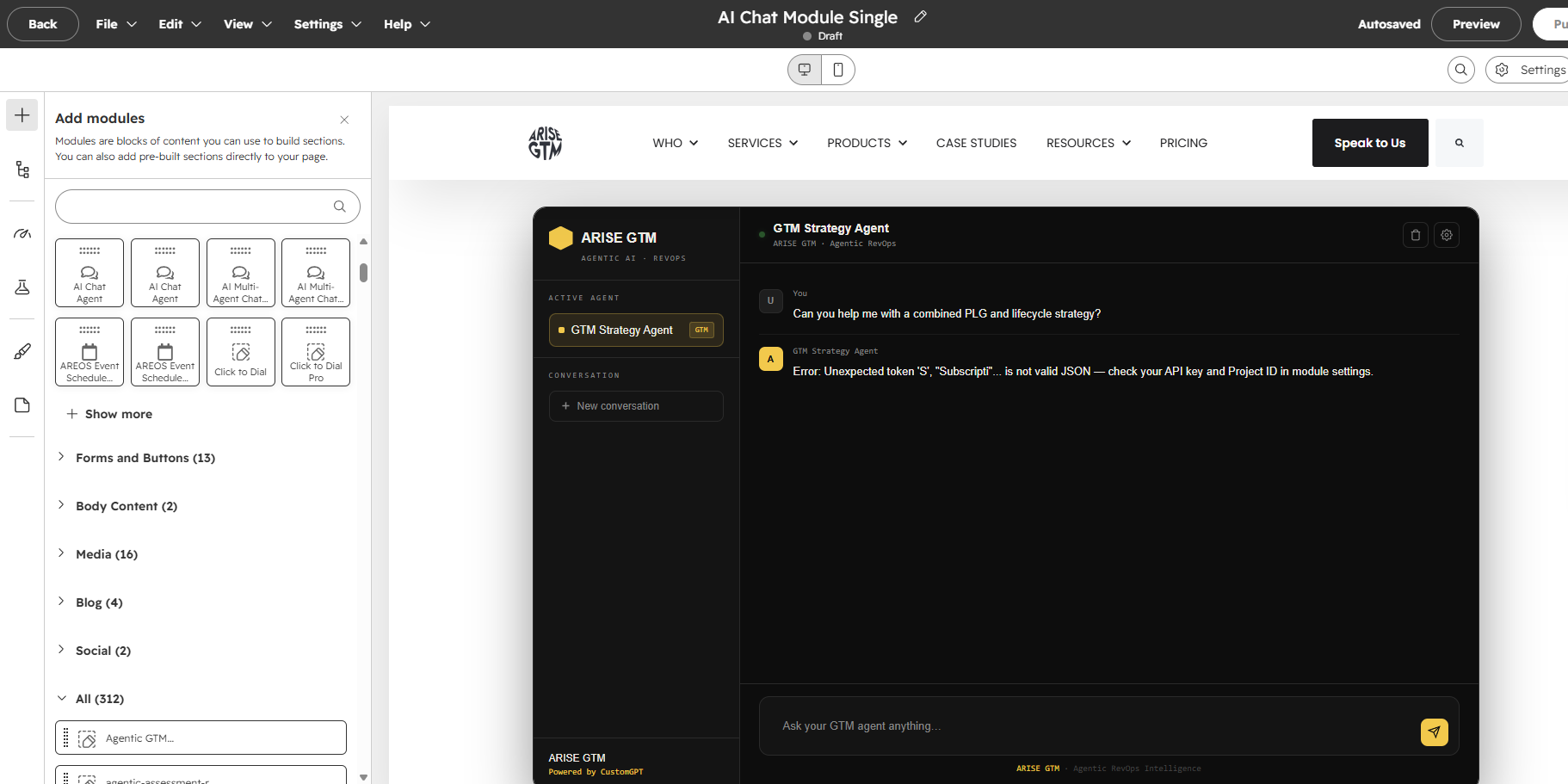
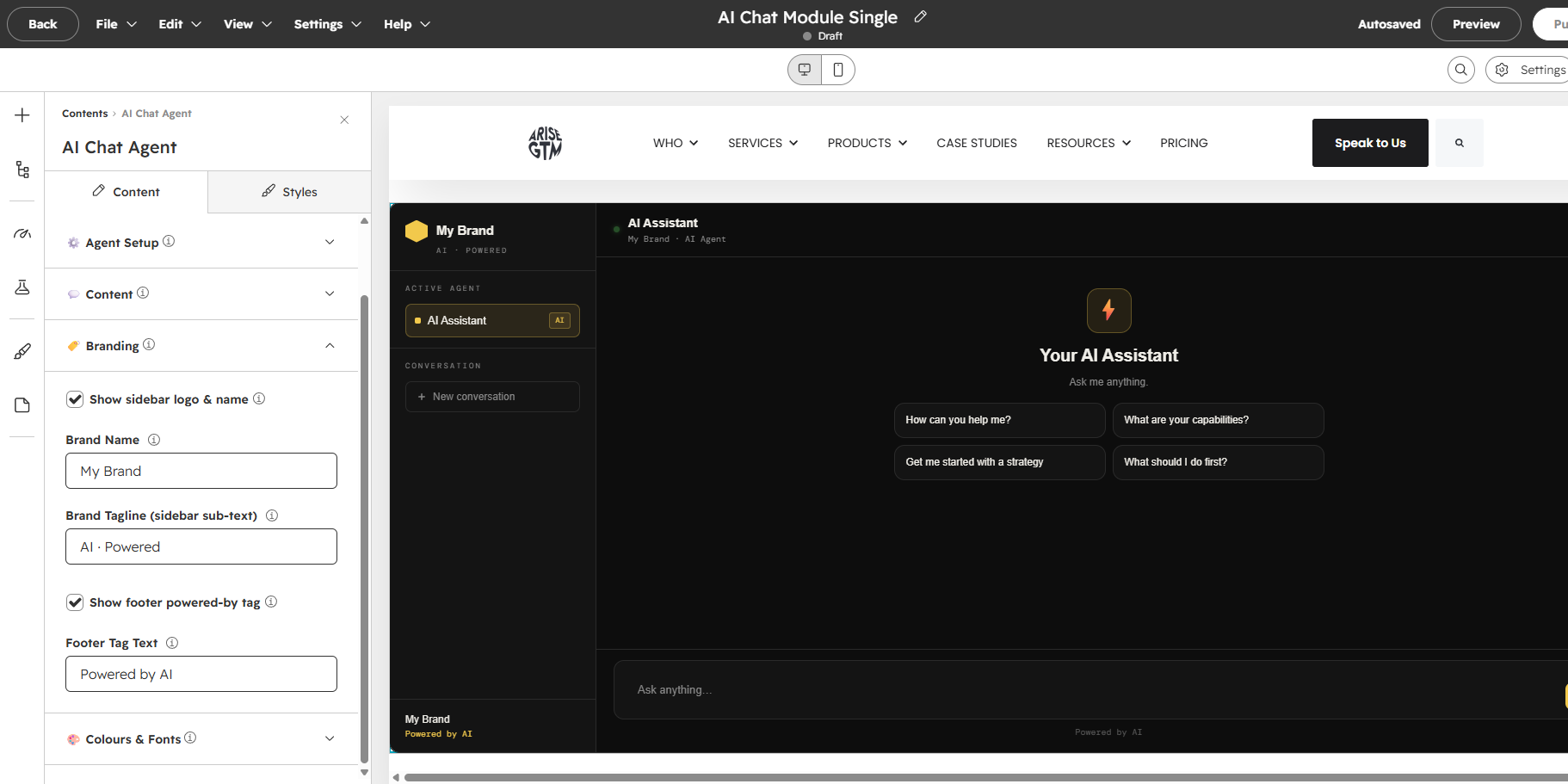
The AI Multi-Agent Chat Console module embeds a chat interface with multiple AI agents that visitors can switch between. Each agent has its own personality, conversation history, and welcome experience. A sidebar shows the agent directory, and visitors can switch agents without losing their conversation in each one. This module is for CustomGPT.

Best for: Websites offering multiple AI services (strategy, support, sales), product suites with specialised assistants, and any scenario where different AI agents serve different visitor needs.

Note: This module requires a proxy URL and client token provided after purchase. Each agent requires its own project ID in your AI platform.

Getting Started

  1. Open any page in the HubSpot editor.
  2. Search for Multi-Agent Chat in the module panel.
  3. Drag it onto your page.
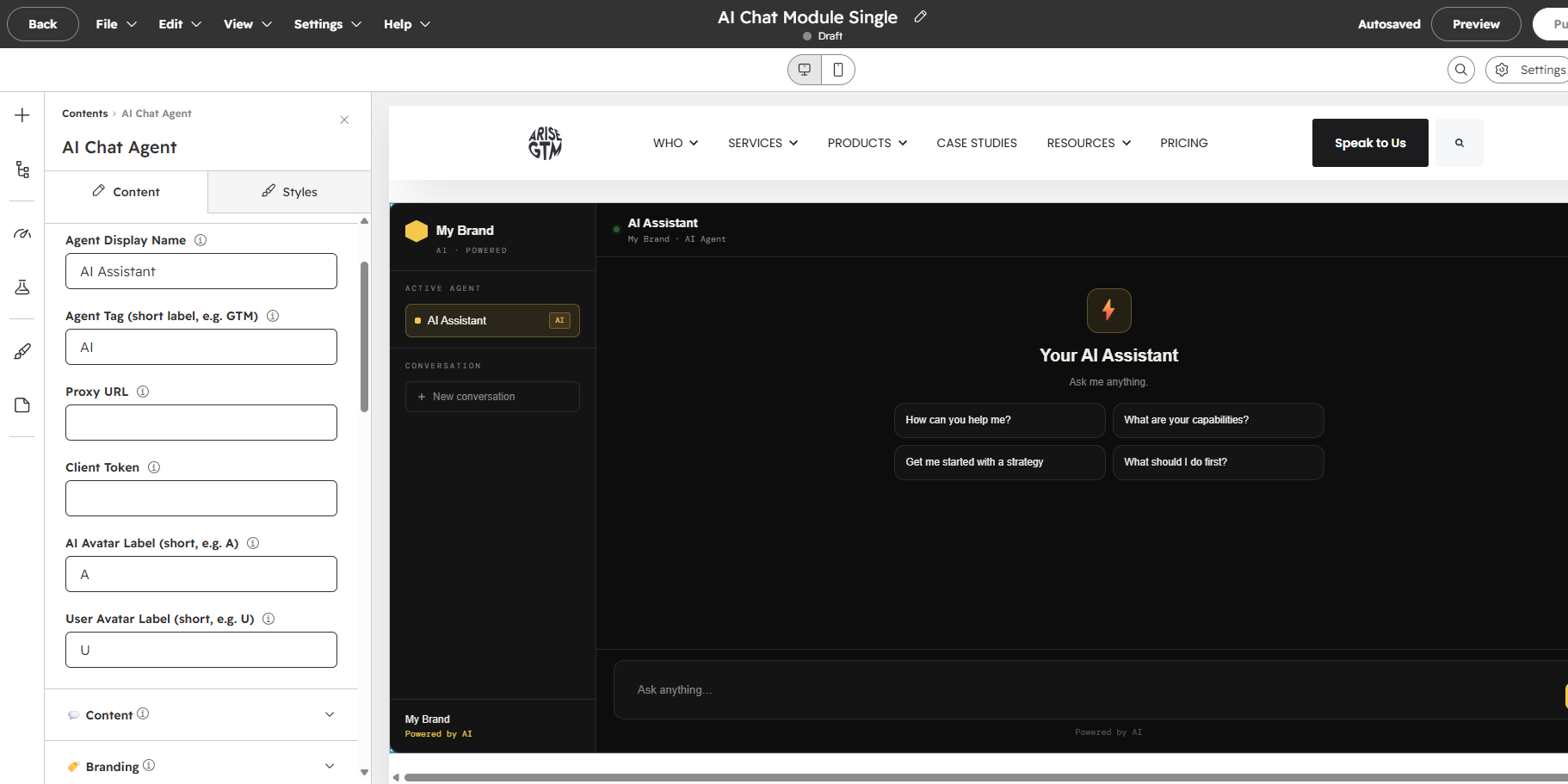
  4. Enter your proxy URL, client token, and configure each agent.

Field Reference

Setup

Field What it does
Proxy URL Your managed proxy URL for all agents.
Client Token Your authentication token.

Agents (Repeater — 1 to 10 agents)

Field What it does
Agent Name Display name in the sidebar and chat header.
Agent Tag Short label badge (e.g. "GTM", "CX", "Ops").
Agent Project ID The AI platform project ID for this specific agent.
Agent Icon An emoji shown as the agent's avatar in the sidebar.
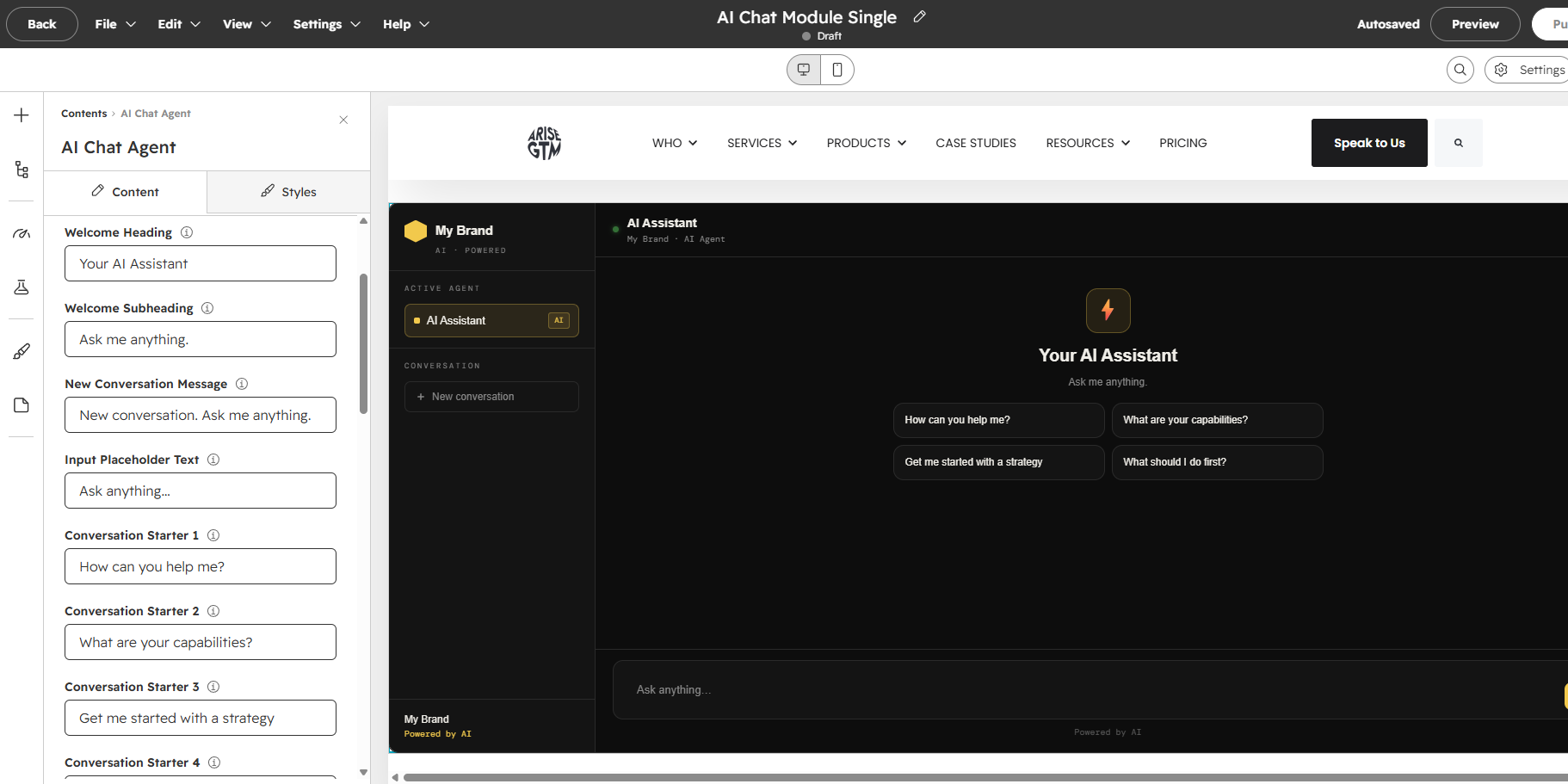
Agent Welcome Welcome heading when this agent is selected.
Agent Subtitle Welcome subheading.
Starters 1–4 Four conversation starter prompts specific to this agent.

Labels

Field What it does
Section Label: Agents The sidebar section heading above the agent list.
Section Label: Conversation The sidebar section heading above the "New conversation" button.
Placeholder Input field placeholder text.

How It Works

  1. The sidebar shows all configured agents with names, tags, and icons.
  2. Clicking an agent switches the main panel to that agent's welcome screen and conversation.
  3. Each agent maintains its own session and message history independently.
  4. The "New conversation" button resets only the active agent's session.
  5. An active indicator shows which agent is selected.

Example Configuration

RevOps consulting agency with 3 specialised AI agents:

Agent Tag Icon Welcome Starter 1
Strategy Agent GTM 🎯 "Your GTM Strategy Partner" "Audit my go-to-market motion"
CRM Agent CRM 🔧 "CRM Architecture Expert" "Help me design my HubSpot setup"
Analytics Agent Data 📊 "Revenue Intelligence Analyst" "Analyse my pipeline metrics"

Tips

  • Agent specialisation: Each agent should have a clearly different purpose. If agents overlap too much, visitors won't know which to use.
  • Icons: Use distinct emoji for each agent — they're the primary visual differentiator in the sidebar.
  • Tags: Keep tags to 2–4 characters. They appear as small badges.
  • Starters: Tailor conversation starters to each agent's speciality.
  • Mobile: The sidebar hides on mobile. Visitors can switch agents via the top bar agent selector.